momgineer: STEAM
Showing posts with label STEAM. Show all posts

Create Digital Stop Motion Animation

 Digital Stop Motion Animation

Hands-on stop motion animation is one of my favorite STEM activities to do with kids, because it can be tied into almost any subject area, offers high engagement, and develops patience, perseverance, and persistence. It's not always an option, though, such as when:

  • Technology or materials are limited
  • You don't have space to set up and keep sets available for multiple sessions (such as if you are teaching froma cart)
  • Or in the case of no-sharing materials, hybrid or remote learning, you may not be able to do hands-on projects.
  • Your kids are working on stop motion activities as a bonus or choice activity when they may only have 10-15 minutes at a time to devote to it.

This is the perfect time to use digital stop motion animation instead!

Simple Digital Stop Motion Animation

A simple way to get started animating quickly is to use ABCYa Animate - backgrounds, characters (called stickers), and drawing tools are all built in. You can simply just jump right in and start animating!

Some of the kids on my robotics team made a stop motion animation video with ABCYa (and then did some extra edits in OpenShot). You can see the video here:


Animating with Google Slides

Almost as easy as ABCYa is to just use Google Slides. I'm not going to reinvent the wheel with a tutorial video because there are dozens of them on YouTube already (I linked some below), but here are the basics:

  1. Start with a background
  2. Add in your animated component(s) as needed
  3. Duplicate the slide
  4. Move your animated component(s) ONE ARROW keystroke in any direction (if animating text add one letter per slide)
  5. Repeat steps 3 and 4 until your animation is complete.
  6. Watch your stop motion animation video as directed in the tutorial videos and/or screen capture the video and add some cool post-edits, like music, sound, credits, etc. I like to use Shotcut or OpenShot for this.

Stop Motion with Google Slides Tutorials


Balloons Over Broadway or Thanksgiving Day Parade Stop Motion Animation

This idea came to me as a way to tie in a digital STEM activity to the read aloud Balloons Over Broadway by Melissa Sweet. Students can create their very own Thanksgiving Day Parade with floats they find on Google image search, or they can draw their own with the drawing tool. Here is a video sample of a completed project:


Why I love this project:
  • Students can work in pairs, but they could also work alone to create a single animation or a complete parade of floats!
  • Kids who struggle with drawing can use a float already found and instead apply their creativity to the animation aspect (changing size, aspect ratio, rotation) or having something exciting or unusual happen during the parade. Perhaps a bird flies by or a person photobombs the video!
  • It can easily be shared to the whole class when complete, as well as family members, and then saved as part of a digital STEM portfolio.
  • It seriously pushes the limits of persistence and patience. Stop motion animation is something that takes time and persistence to complete! Students are always so proud of their creations because they know just how much time they put into them.

Get the Resource
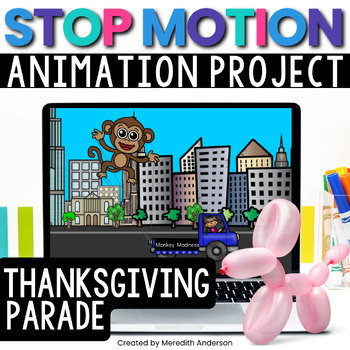
While you don't need this Digital Stop Motion Animation resource to complete the activity, I have included a background, various parade floats and vehicles, and step by step instructions so that students can do this project independently. Just download and get started right away!


Christmas Stop Motion Animation

If you celebrate Christmas in the classroom, this stop motion animation movie (or others) is so cute to create! I found just the perfect clip art elements to animate Santa Claus flying across the winter night sky. Here is a video sample:


If you want to create a winter-themed stop motion animation without Christmas theme, building a snowman is the perfect idea. I just love how this one came out:


Get the Resources


Pin these ideas for later:


Why You Should Take Pictures in STEM Class

 Why You Should Photograph STEM Prototypes

Take photos of the prototypes or of the design process in your STEM classroom. It will make clean up SO much easier, and your students will have a memory of their prototype to share for many years to come. | Meredith Anderson - Momgineer

1. They Work HARD on Their STEM Projects

If you have ever tried a STEM challenge with your kids, you know that they are proud of their hard work (and rightly so). Sometimes, though, due to size, construction, or materials, a completed prototype just can't stay assembled. You will no doubt hear, "But I don't want to take it apart/throw it out/recycle it!"


It's best to let your students know ahead of time when their prototype can't stay in the classroom or go home with the student. Some kids just can't handle the disappointment if they aren't informed at the start that their creation won't last forever. Don't worry though, I have a simple and very effective solution! Most kids can be quite easily soothed to know that their creation can live forever in their heads with a simple photograph. I know this won't work 100% of the time, but it really does seem to work just about that.

Reason #1. Preserve their hard work by capturing a photo!

Worth a Thousand Words

While the frustration and disappointment is real, nothing quite captures the moment like a photograph. In this digital world we live in, photographs you can hold are even more special than they used to be, and are sure to please even the most reluctant STEM challenge disassembler.


2. Easy Peasy STEM Photos

You might be thinking that taking photographs sounds nice, but it is just too much effort. Who wants to remember to get out the camera or smartphone, take the photos, and then have them printed? While digital photos can be wonderful, especially if you have a designated STEM photographer for your class website, nothing quite beats a picture that can be displayed proudly at a desk or on a home refrigerator.

Reason #2. Taking photos is EASY! There is really no excuse to not take a photo in this day and age!

STEM Recording Sheet

I have created a STEM recording page/graphic organizer with a section to display photos from an instant camera. Please click the image below if you'd like to download and use it.
Won't you consider subscribing for more freebies like this one?
 

Reverse Engineer or Re-Make

This final reason to take photos in STEM class is one you just have to try out. After projects are complete and photos have been taken, other students can try to recreate the prototype from the notes and photo. While it's not always possible, it sure is fun to try! Students who wish to try and re-make their design another time will have an easier time remembering their prototype by looking at the picture.

Try an Instant Camera

Disclaimer: I may earn a small commission for my endorsement, recommendation, testimonial, and/or link to any products or services from this website. Your purchase helps support my work in bringing you downloads of value and information about educational resources. The link below is an Amazon affiliate link. You can read my full disclosure here.

Try the Fujifilm Instax


or Keep it Digital!

Take photos with a phone, tablet, etc. and then print on 2x3 sticky paper with the HP Sprocket Portable Photo Printer:

Pin these ideas for later:

Christmas STEM and STEAM Activities

Christmas STEM Activities for Kids


Ho, ho, ho! Try out these Christmas STEM activities this holiday season to keep students engaged all the way until holiday break. I have created twelve fun AND differentiated STEM and STEAM activities that range from simple towers to moving conveyors!

Get started with Christmas STEM

Jump right in with peppermint candy and have students create either a tower or a bridge. Don't forget to follow the engineering design process! While you don't need to spend a lot of time on each step, it is important to follow the process. Kids will want to start building right away! One way to avoid this is to hold off on building material distribution until after a design sketch has been completed.


Then move on to a gingerbread house! If you are working with upper elementary or middle school kids, create the house with cardboard and have them add a simple circuit to light up their house.


STEM Strength Challenge - Support the Weight of the Stocking Goodies!

An empty stocking is not that difficult to support, but what about all of the goodies Santa leaves? Students will need to design a counterbalance system to keep the stocking from falling. This is a great activity to practice the testing phase of an engineering design challenge. It's also important to make sure that your testing set-up is safe so that no toes are injured when the stockings inevitably fall!


Do You Hear What I Hear?

Design and create a jingle bell for Christmas! Use metal objects to create a jingling bell.
Once the bell design is complete, change up the challenge by having students create a way to silence the jingle bell.

Help the Elves in the Workshop

Moving gifts around in the workshop is no easy task! Help the elves by designing and creating a conveyor belt! This challenge is perfect for showing how rotational motion can be converted into translational motion.


Find these and more activities in the 12 Christmas STEM Challenges Activity pack! Not only will you find more detailed instructions for the above challenges, but each challenge comes with a colorful poster and engineering design recording page!

https://www.teacherspayteachers.com/Product/Christmas-STEM-Activities-12-Challenges-4241833?utm_source=Momgineer%20Blog&utm_campaign=Christmas%20STEM%20


CONTENTS of the Christmas STEM Resource
  • Suggested Material List
  • STEM Challenge Tips: General tips for any STEM challenge.
  • Teacher Notes: includes terminology and differentiation ideas.
  • Christmas STEM decor
  • Poster and dedicated recording page for each of the 12 main STEM challenges that guide the students through the engineering design process. Some of the challenges have an additional recording page for added difficulty, or to include metric measurements.
  • Challenges
    • Christmas Tree
    • Parachute Gift Drop
    • Workshop Conveyor Belt
    • Snowball Launcher
    • Stocking Holder
    • Candy Structures
    • Reindeer Shelter
    • Jingle Bell
    • Gingerbread House
    • Elf Zip Line
    • Sleigh for Santa
    • Christmas Maze
     
Pin these ideas for later:
Christmas STEM and STEAM Activities for Kids - 12 Challenges to Tinker all the Way!

Activities to do with The Dot for International Dot Day

International Dot Day Activities

The Dot, by Peter H. Reynolds, has turned into more than just a read aloud about overcoming frustrations and encouraging others. It's an entire movement now! For any child who feels as if they are "not enough," this story will hit home.


Two quotes that came to mind when reading this book:

"The best way to get things done is to simply begin."  - Unknown

"Believe you can and you're halfway there." - Theodore Roosevelt

Disclaimer: I may earn a small commission for my endorsement, recommendation, testimonial, and/or link to any products or services from this website. Your purchase helps support my work in bringing you downloads of value and information about educational resources. The link below is an Amazon affiliate link. You can read my full disclosure here.

Warm up the Brain for Creativity on International Dot Day

Not only does drawing wake up fine motor skills, it allows an emotional connection and creativity to blossom. Start drawing or painting with a dot!

Move on to STEM Activities with The Dot
All budding artists need proper tools to draw and paint with. They also need an appropriate place to do it! Vashti would appreciate a desk just for art! Why not make it a "Dot Desk"?


Design and Create an Easel

Sometimes a desk won't cut it. Why not create a tabletop mini-easel?

Easels gained popularity as canvas paintings became more common. You can view your artwork more easily from a distance when it's on an easel, and it gives you a different perspective than a desk view. Easels are also great for displaying finished works of art!


Design and Create a Painting Tool

If you haven't tried these painting methods with kids, you're missing out:
  • sponges
  • painting with bubble wrap
  • painting by rolling marbles
  • finger painting
  • spin art

There are SO MANY fun ways to paint! Have your students design their own unique painting device using pom poms, sponges, rollers, cardboard, etc.


Read The Dot, by Peter H. Reynolds

*by ordering from this link I may earn a small commission as an Amazon associate member. You can read my full policy here.


Download this Resource

I created this resource to use with The Dot book on International Dot Day. 
https://www.teacherspayteachers.com/Product/Dot-Day-STEM-and-STEAM-Activities-4841433?utm_source=Momgineer%20Blog&utm_campaign=The%20Dot%20Post
Save these ideas for later!
Pin them:


Coming up with a Name for your Makerspace or STEM Lab

Makerspace Name Ideas

You have the space, you have the gear, now for the name! There are a lot of great name ideas out there, so I have compiled a list of some you may like, as well as a makerspace name generator of sorts!


Unique Makerspace Names

These names may combine words, utilize a play on words, or just sound fun:

  • Collaboratory
  • Imaginarium
  • Mindcave
  • Da Vinci's Workshop

Simple Makerspace Names

Or why not try something simple?
  • Eureka!
  • The Brainstorm
  • STEM Lab
  • Makerplace
  • Fablab
I also created this simple chart for coming up with a makerspace name. Just pick one word from each column and you're done! It couldn't be easier.

Makerspace Names That Suit YOUR Makerspace

Still not sure? Here are some tips for coming up with a unique name:
  • Think about what your makerspace's focus is. Is it on building? Arts? Robotics? Environmentally friendly design? Try using a word that supports your makerspace's mission and feel.
  • Get input from your students. How do they feel in the makerspace? What are their favorite tools and projects?
  • Describe your space. Is it on an upper floor? A basement? In a nook? In a library? What's the history of the space? Try incorporating an aspect of the physical space into your name and it's sure to fit.

What do you call your makerspace or STEM lab? Comment below or head to the STEM educator support group on Facebook to share your name with us!

Looking for more ideas while setting up your makerspace? You may find the following articles useful:

Setting up Your Makerspace

Setting up an Elementary STEM Lab
by Sarah Lalonde
So You Want to Start A Makerspace?
by Teach Outside the Box

Pin these ideas for later:
Demystifying STEM with SOLIDWORKS Apps for Kids


Demystifying STEM with SOLIDWORKS Apps for Kids

Let’s face it: sometimes, getting kids into STEM is hard. You can preach the gospel of science, technology, engineering, and math all day long, but if a kid feels like their creativity and imagination are being stifled by rules and numbers, “STEM” can quickly turn into “STOP.” SOLIDWORKS Apps for Kids was created with this in mind.
SOLIDWORKS Apps for Kids is an ecosystem of apps meant to nurture new designers from age 4 and up. With Capture It, Shape It, Mech It, Style It, and Print It apps, kids are introduced to real-world workflow practices like ideation, creation, enhancement, and production in a fun and accessible way. The apps empower kids to learn while allowing their creativity to flow, giving them multiple methods to design and turn their craziest ideas into reality.

Meet the Apps 

http://www.solidworks.com/a4k_momgineerblog

Capture It is a personal inspiration app, where kids can add photos, draw their own images and turn them into stickers, and create an idea board for all the designs that will come next.

Anyone who is familiar with 3D modeling will recognize Shape It, a kid-friendly, easy to use CAD app that allows kids to shape, prod, and pull material into their very own creations.

http://www.solidworks.com/a4k_momgineerblog
Two kids might create similar models, but with the Style It app they can really make their own designs pop. Kids can transfer models from Shape It to Style It and use colors, stickers, backgrounds, and more to decorate and make their model truly unique. Create a cute and happy spider or your own Mars rover.

With the Print It app, kids can watch their designs come to life. Print It gives kids the ability to 2D print or 3D print their designs, and also allows them to learn about isometric views in a cool way with the Cube Print function. Keep reading to see an example of the Cube Print function.

Is your child more interested in motors and linkages? With the Mech It app, moving machinery is in within arm’s reach, with cool and colorful spiral designs that kids can tweak in any which way they like.
http://www.solidworks.com/a4k_momgineerblog


Mech It was definitely my favorite app to try out! Join a few bars together, add a motor, and then hit play to watch it go! You can even slow it down and speed it up with the slider bar. Here is a simple crank-rocker mechanism I created:


Pro Tips to Get Started Successfully with SOLIDWORKS Apps for Kids

1) Start with the Videos

When you try out the apps, make sure you start with the videos! They are short but all very helpful so that you can get started right away and learn what all the different options are for drawing, styling, and modifying designs. Especially for kids new to CAD, this is SO helpful! Just click the ? in the upper right corner of the screen at SOLIDWORKS Appsfor Kids to find all the videos to get started on the right track.

2) Utilize the Public Projects

Navigate to the public projects, find one you like, then click on the copy icon to "Riff."


3) Start tinkering!

Dive right in and start tinkering with whichever app appeals to you most!

4) Remember to Print it

One way for kids to show what they created is to print it. You can create 2D prints on paper, with or without a background, on a 6-sided cube, and in color by number style (what?!!! This is so awesome!). You can even 3D print your kids' creations. I constantly get asked for project ideas for 3D printing. These apps have got you covered; design, go to print it, and grab your STL file. Explore the Print It app and never run out of ideas for your 3D printer.

http://www.solidworks.com/a4k_momgineerblog

Internet Safety and Privacy


Projects in SOLIDWORKS Apps for Kids are always private until you decide to share to the Apps for Kids Public Gallery. Users can “riff” on public projects—your kid might see a cutesy bunny design, like it, then riff on that project and transform that bunny into an out of this world alien. Creativity, imagination, and community are all part of the Apps for Kids ecosystem.

STEM Block, Tech Lab, or Makerspace

Educators across the country have embraced SOLIDWORKS Apps for Kids as a means to teach their students about design and engineering. Now, the Apps for Kids Classroom interface allows teachers to create and organize self-contained workshops.

http://www.solidworks.com/a4k_momgineerblog

Use at Home Together

Parents, do not deprive yourself of the opportunity to create something magical and fun with your child. Work together to create a robot army, an enchanted land, or a space adventure!

While there are dozens of apps out there that may enhance STEM learning, these apps are truly a complete suite of apps. There is something for everyone, whether your students lean more toward revising and enhancing designs or creating something brand new from scratch.
If you give kids the means to express and create, to engineer and tinker to their heart’s content, they can learn that STEM exists beyond numbers and rules. With SOLIDWORKS Apps for Kids, they are already there. Learn more about all the fun things you can do with SOLIDWORKS Apps for Kids right here.

Pin These Ideas for Later